My Blog

instagram

How to Add a Link on Instagram Story
instagram

How to Add a Link on Instagram Story & Reel

If you are running an online business and you want to get traffic from Instagram,  Instagram is not only about posting photos and videos—many people use it to drive traffic to their website, online store, , landing page, or product page. If you also want to get more Instagram followers, BoostigStore is a trusted site for you. also want to send your followers to your website, product page, or any other link, the best way is to use Instagram Stories. Story link stickers help you get more traffic, promote your services, and increase engagement. What Is a Link Sticker on Instagram? A Link Sticker on Instagram is a tool that allows users to add clickable links to their Stories. Instead of writing a URL in captions, followers can tap the sticker to visit a website, product page, blog, or video instantly. It is available for all accounts and is a simple way for creators and businesses to drive traffic, promote products, and increase engagement. How to Add a Link to an Instagram Story (Step-by-Step) Instagram Stories used to have the “Swipe Up” feature, but it was only for verified accounts or people with 10,000+ followers. Now, you can use the Link Sticker and the Link in Bio to send people from Instagram to your website, products, or other pages. Adding a link to your Instagram Story is very simple. Follow these easy steps: Open Instagram and Create a Story Swipe right from your home screen or tap your profile photo in the top-left corner.Choose to take a photo, record a video, or upload something from your gallery. Tap the Sticker Icon Tap the Sticker Icon to see many fun stickers on your screen. You can choose any sticker you like and add it to your message. Stickers help you show your feelings in a simple way. They make your chats more colorful, happy, and easy to understand. Select the “Link” Sticker Scroll down until you find the sticker named “Link.” This is where you will add your website or page link. Enter Your URL Type or paste the link you want to share, such as: Double-check the link to make sure it’s correct. Make Your Link Sticker Look Better Changing your link sticker can help your Story stand out and get more clicks. Change the text:  Instead of showing a long website link, use short action words like Shop Now, Read More, or Get Details so people know what to do. Pick clear colors:  Tap the sticker to switch colors or press and hold to choose a color that matches your Story. Use colors that are easy to see and match your brand. Place the Sticker on Your Story Tap Done and position the sticker where it is easy to see.Avoid placing it near the bottom where viewers might skip your Story. Share Your Story Tap “Your Story” to publish it.Your followers can now tap the sticker and visit your link instantly. How to Add a Link on Instagram Reel Instagram Reels reach more people than regular posts. This makes them a great place to add a link, especially if you want to promote a website, product, or service. Create a Reel Tap the + button and choose Reel. Create a fresh video or import existing clips from your gallery. Add music, text, filters, or effects to make your Reel more engaging. Tap Next After finishing your video editing, tap Next to move to the final screen. This is where you can add captions, tags, and the link to your Reel for viewers to click. Tap Add Link On the final screen, you will see the option “Add Link.” Tap it, and a small box will appear where you can paste the URL of the page you want your followers to visit. Enter Your URL Paste your link into the box. Remember, Instagram only allows one clickable link per Reel, so choose the most important one, such as your website, product page, or blog post. Post Your Reel Tap Share to publish your Reel. A link button will appear under your username, and viewers can click it to visit your page, helping you get traffic and engagement. How to share a link on an Instagram story Open the video whose link you want to share, click on the share button, and then click on the option for the platform on which you want to share it. You can copy the link or post it as a WhatsApp status to quickly reach friends, groups, and social media audiences for easier viewing and engagement. Link Sticker Ideas to Help Your Business Grow Introducing a New Product Show off your latest item with a Story photo or Reel. Add a link sticker so viewers can easily open the product page and make a purchase. Promoting a Blog Post or Content Share a quick teaser or eye-catching graphic of your newest article. Include a link sticker so followers can read the full post. Highlighting a Special Deal or Offer Use strong calls to action like “Shop Now” or “Claim the Deal” to build urgency and boost sales. Sharing Event Tickets or RSVP Info Upload an event poster or teaser clip. Add a link sticker that sends viewers straight to the registration page for simple sign-ups. Posting Hiring Updates or Job Opportunities Show behind-the-scenes moments of your team or workplace. Add a link sticker that directs people to your job listings so they can apply right away. Conclusion Knowing how to add a link on Instagram Story and Reel is a simple but powerful way to grow your online presence. Whether you want to promote your website, sell products, or share helpful content, Story Link Stickers and Reel Links make it easy for followers to visit your page. Start using links today, experiment with creative CTAs, and watch your traffic and engagement grow. Instagram gives you the tools—now it’s time to use them to reach your audience and achieve your goals.
How to appear offline on Instagram
informesion, instagram

How to Make Yourself Appear Offline on Instagram

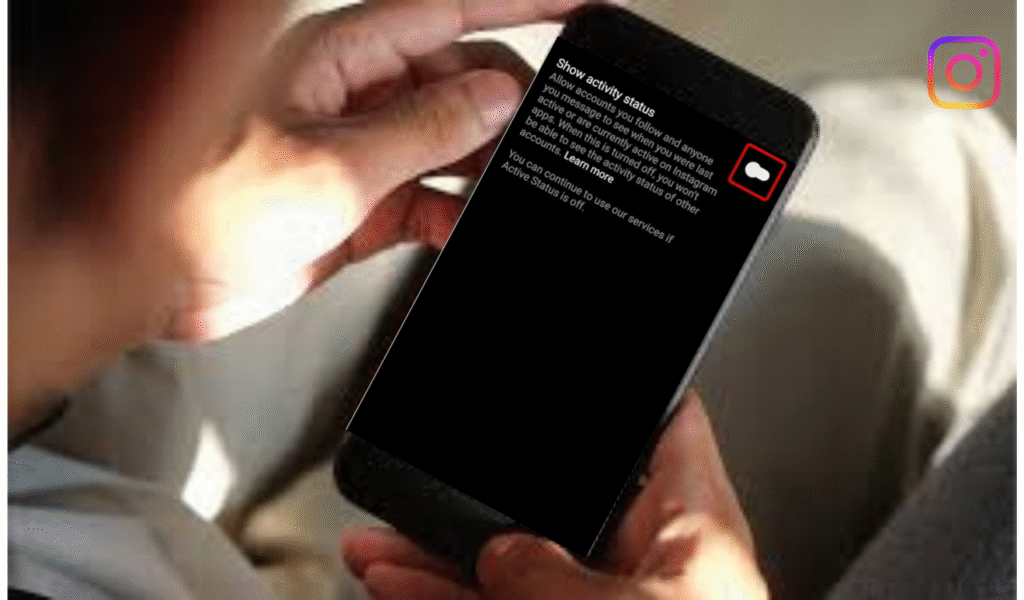
Instagram is one of the most widely used social media platforms for communication, sharing posts, and connecting with friends. By default, Instagram shows your activity status, such as whether you are Active Now, Active Today, or Last Active, along with a small green dot beside your username when you’re online. While these features help others know when you’re available for chatting, they’re not ideal for everyone. Many users value privacy and prefer to browse content quietly. BoostigStore understands this need and provides helpful guides for managing your Instagram settings. This complete. Step-by-Step  How to Appear Offline on Instagram Want to appear offline on Instagram but still scroll in peace? Here’s a simple step-by-step guide to help you hide your activity status easily. Open the Instagram app and go to your profile. Tap the three lines in the top-right corner and select Settings and Privacy. Next, go to Messages and Story Replies, then tap Show Activity Status. Turn the toggle off to appear offline. This means no one will see when you were last active or currently online. You can still message and browse freely without alerting anyone. Whether you want privacy or just quiet time, this quick setting keeps your Instagram use completely private and under your control. Appear Offline on Instagram (iPhone & Android ) Appear Offline on Instagram (Android) Open Instagram on your Android phone and tap your profile icon at the bottom right. Go to Settings and Privacy → Messages and Story Replies → Show Activity Status. Toggle it off to appear offline instantly. Appear Offline on Instagram (iPhone) To appear offline on Instagram using an iPhone, open the Instagram app and go to your profile. Tap the three lines (☰) in the top-right corner, then select Settings and Privacy. Scroll down to Messages and Story Replies, and tap Show Activity Status. Turn off the toggle to hide your online status and last active time. Now, you can browse Instagram privately without others knowing when you’re online. How to Appear Offline on Instagram Using a Desktop Browser If you use Instagram on your computer, you can easily appear offline through your desktop browser. Open Instagram and log in to your account. Click on your profile picture in the top-right corner, then select Settings from the dropdown menu. Next, go to Privacy and Security. Under the Activity Status section, uncheck the box that says Show Activity Status. This simple step will hide your online presence and last active time from others. You can now browse, like, or message freely on Instagram without anyone knowing you’re currently active online. How to appear offline on Instagram chat If you want to appear offline while chatting on Instagram, it’s easy to do. Open your Instagram app, go to your profile, and tap the three lines (☰) in the top-right corner. Select Settings and Privacy → Messages and Story Replies → Show Activity Status. Turn off the toggle to hide your online and last active status. Once disabled, your friends won’t see when you’re active or typing in chat, giving you complete privacy while messaging. Can You Appear Offline to Some People Only? Instagram currently doesn’t allow users to appear offline to specific people only. When you turn off your Activity Status, it hides your online presence and last active time from everyone, not just selected followers. However, you can restrict or mute specific accounts to limit interactions without blocking them. This gives you more control over your privacy. While you can’t choose who sees you offline, using these settings helps manage who engages with you on Instagram. Does Appearing Offline Affect Your Messaging? Appearing offline on Instagram does not affect your ability to send or receive messages. You can still chat, reply, and share content as usual. The only difference is that others won’t see when you’re online or when you last used the app. Your messages will still be delivered instantly, and you’ll continue to get notifications. This feature simply hides your activity status, allowing you to stay connected privately without showing your active presence to others. Benefits of Appearing Offline on Instagram Appearing offline on Instagram gives you more privacy and peace. When you turn off your online status, people can’t see when you are active or last seen. You can check posts, send messages, and scroll freely without anyone knowing. It helps you avoid unwanted chats and focus on what you enjoy. This feature is great for those who want to use Instagram quietly and stay in control of their time and activity. Conclusion Appearing offline on Instagram is simple, effective, and accessible through your privacy settings on both mobile and desktop devices. By disabling your Activity Status, you gain control over your online visibility and browsing habits. Whether you want to reduce distractions, increase privacy, or simply navigate the platform more comfortably, turning off the activity indicator allows you to use Instagram on your own terms. Although there is no way to selectively hide your status from specific users, hiding your Activity Status entirely is the most reliable method to ensure privacy across your account. Frequently Asked Questions About Appearing Offline on Instagram Is there a way to appear offline on Instagram?  Yes, you can appear offline on Instagram by turning off your Activity Status in the Settings and Privacy section. How do I turn on ghost mode on Instagram? Turn off your Activity Status in Settings and Privacy to hide your online presence and appear in ghost mode. Can you appear offline on Instagram? Yes, by disabling the Show Activity Status option in Settings, you can appear offline and browse privately anytime you want. Does Instagram show when someone is online? Yes, Instagram shows a green dot beside a user’s name when they are online or active in direct messages. Is there a way to appear offline on Instagram? Yes, open Settings → Privacy → Activity Status, and turn it off to hide your online activity from everyone.

Scroll to Top